iPhone-to-Mac Sync
The iPhone app now supports multiple sync destinations, not just local-network transfer. Use the Sync tab on iPhone to choose where your Apple Health export goes, then use the Mac app’s Sync tab to pull the latest export into analysis.
Direct to Mac keeps data on your local network. File and cloud providers follow the behavior of the destination you choose. The app itself does not upload your data to any service you did not explicitly configure.
Available Sync Providers
| Provider | Best For |
|---|---|
| iCloud | Apple-managed sync between your own devices |
| Google Drive | Visible file workflow in Drive |
| Dropbox | File-based sync with Dropbox storage |
| Direct to Mac | Device-to-device transfer on the same local network |
| REST API | Sending compact data to your own endpoint |
| Home Assistant | Home Assistant dashboards and automations |
| Nextcloud / WebDAV | Self-hosted file sync |
Requirements
- iPhone app installed on your iPhone (iOS 16 or later)
- Mac app installed on your Mac (macOS 13 Ventura or later)
- A provider configured in the iPhone app’s Sync tab
- Both devices on the same local network only if you want Direct to Mac
How Sync Works Today
- On iPhone: choose a provider in the Sync tab.
- First sync: the app exports an initial date range — you can choose a full backfill — and sends it to the selected destination.
- Later syncs: the app sends only newer data incrementally, so each auto-sync is a small export containing just the records added since the last one.
- On Mac: open the Sync tab to import the synced data. The Mac app merges every incremental sync into one rolling Synced Health Data dataset, so analyzing it covers your full synced history.
Using an older Mac version? Before Mac 1.996 each sync was saved as its own tiny entry in History (often showing "Not enough data"). Mac 1.996 merges every increment into one Synced Health Data entry that updates in place — updating the Mac app fixes the many-small-entries behavior.
Direct to Mac
If you want the local-network workflow, use Direct to Mac. This is still available, but it is now one provider among several.
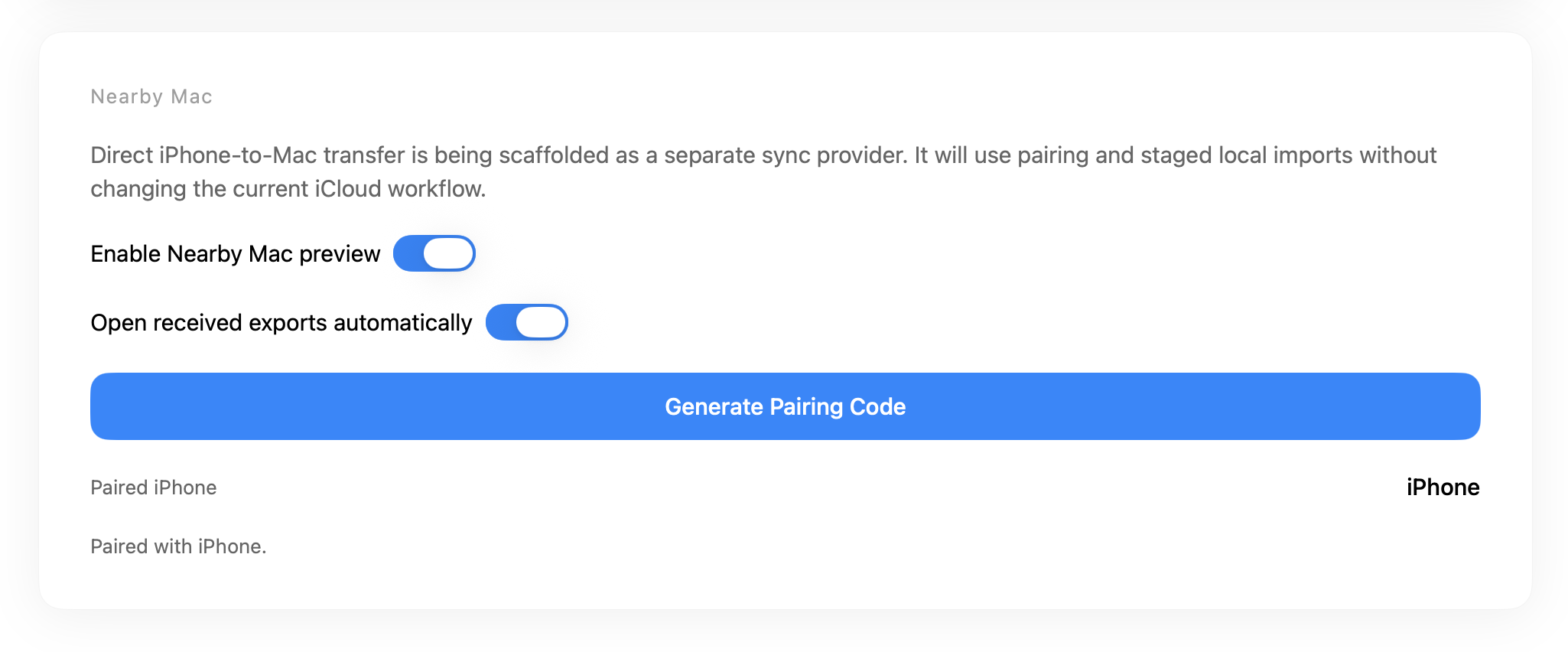
- Open the Mac app and navigate to the Sync tab.
- Use the pairing and discovery controls shown there.
- On your iPhone, select Direct to Mac as the provider in the Sync tab.
- Run the sync. The export is sent directly to your Mac on the same local network.
What Gets Synced
The iPhone app exports Apple Health data and sends it through the provider you selected. Depending on your provider, that export may be XML or a compact JSON payload. Common categories include:
- Activity -- steps, distance, flights climbed, active energy
- Heart -- heart rate, resting heart rate, HRV, blood pressure
- Sleep -- sleep stages, time in bed, sleep duration
- Workouts -- type, duration, calories, route data
- Body -- weight, BMI, body fat percentage
- Nutrition -- dietary energy, macronutrients, water intake
- Vitals -- blood oxygen, respiratory rate, body temperature
- Mindfulness -- mindful minutes, state of mind
The first sync establishes your baseline — choose a full backfill if you want your complete history. Later syncs send only newer data, and the Mac app merges each increment into the single Synced Health Data dataset.
Privacy and Security
The privacy model depends on the provider:
- Direct to Mac stays on your local network.
- File and cloud providers send the export to the destination you selected, such as iCloud, Google Drive, Dropbox, or Nextcloud.
- REST API and Home Assistant send a compact structured payload to the configured endpoint.
Using the Mac Side
The Mac app’s sync workflow lives in the dedicated Sync tab, not in macOS Settings. Use it to:
- review available exports
- refresh the export list
- import the newest export into the merged Synced Health Data dataset
- manage Mac-side sync and import flow
Because increments merge into one dataset, History shows a single Synced Health Data entry that updates in place each time you import, rather than a new row per sync.
Troubleshooting
Direct to Mac is not finding the Mac
- Confirm both devices are on the same local network.
- Check your Mac firewall settings and allow incoming connections for the app if needed.
- Restart both apps and try again.
Cloud sync completed on iPhone but nothing shows on Mac
- Open the Mac Sync tab and refresh the list.
- Mac 1.996 auto-sync imports the newest export into the merged Synced Health Data dataset; if you have several pending increments, open the Sync tab so the latest one is picked up.
Sync failed while the iPhone was locked
- When protected data is unavailable (iPhone locked), the app now prompts you to unlock your iPhone and retries the sync automatically.
- Unlock the device and let the sync run again, or trigger a manual sync from the Sync tab.
Widget shows the wrong provider
- The widget display reads the provider from the iPhone app’s Sync tab.
- The widget action itself is configured separately in the iPhone app’s Settings screen.